Posts mit dem Label CASB werden angezeigt. Alle Posts anzeigen

Dienstag, 15. Februar 2022

Restrict Microsoft Teams Copy & Paste

The need to restrict the copy & paste feature in Teams can have different reasons.
For example, it can prevent users from copying content from Teams chats and posting it in other apps. In general, it is important to consider whether these restrictions apply to the web version of Microsoft Teams or to the Teams client/app. Both can be restricted, but different solutions are used in each case:
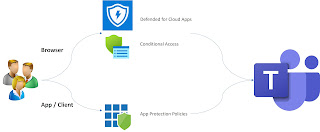
A common scenario, for example, is to restrict the copy & paste feature for guest users. This can also increase security on unmanaged devices, for example in the case of guest users or a bring-your-own-device strategy.
To implement this scenario for browser access, a Conditional Access policy is created that only affects guest users/selected users or groups and in which Azure AD joined devices can be excluded.
If the Teams Client / the Teams App is used for access, a App Protection Policy must be used in Endpoint Manager. This policy can then be restricted to "unmanaged" devices, for example.

Restrict copy & paste when accessing via the browser

When accessing via the browser, the request is redirected from a conditional access policy via Defender for Cloud Apps, with the "Use Conditional Access App Control" setting:
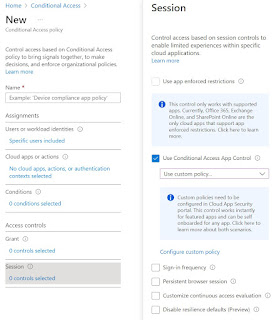
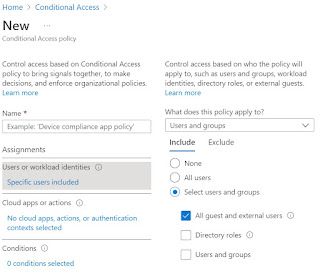
The conditional access rule can be restricted to guests or specific groups from Azure AD, for example:

A rule must then be created in Defender for Cloud Apps that prevents the copy & paste capability:
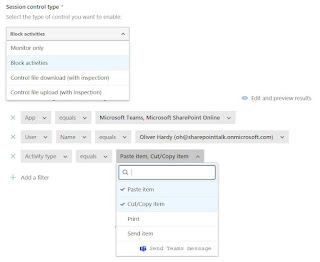
As the screenshot shows, the following other capabilities can also be restricted:
  • Print
  • Send item
  • Send Teams message
In the "Session control type" section of the policy, you can see that uploads or downloads can also be restricted in this way. A separate policy must then be created for this, since the filter in the "Session control type" section only allows a single filter.
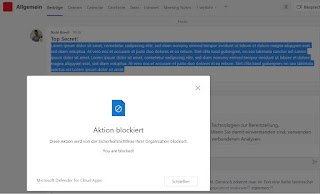
The user now receives the following notification when trying to copy data from a Teams chat:
Restrict copy & paste when accessing via Teams client / Teams app

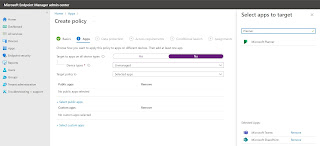
App Protection rules are used when accessing via the client / app. This is a feature in Microsoft Endpoint Manger. For the scenario of restricting access from unmanaged devices, the "unmanaged" option is selected for the Device Type in the policy. In the "Apps" section of the policy, the applications that are affected by the policy are defined. As the screenshot shows, the same policy can also cover additional apps, such as Microsoft Planner:
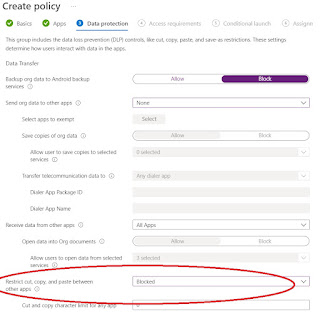
In the section "Data protection" the setting "Restrict cut, copy, and paste between other apps" is available:

The user will now see this message when trying to copy data from a Teams chat and post it in WhatsApp, for example:
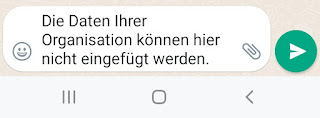
The following additional settings can be configured in the App Protection Policy:
  • Backup org data to Android backup services
  • Send org data to other apps
  • Receive data from other apps
  • Screen capture
  • Printing org data
  • Restrict web content transfer with other apps


Mittwoch, 15. Dezember 2021

Automatically encrypt content in Office 365 services

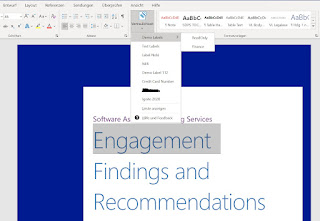
Due to the success of Microsoft Teams, the question of which data / whether sensitive data can be stored and processed in Office 365 is being asked more and more. This can be triggered by aspects of the GDPR as well as company- or industry-specific compliance rules. With the Sensitivity Labels, Microsoft Information Protection provides an option for labeling and additionally encrypting content. This is generally an option for storing and processing sensitive data in the cloud. The feature is included in the Office 365 E3 license and higher. However, only manual labeling is available in the Office 365 E3 license.
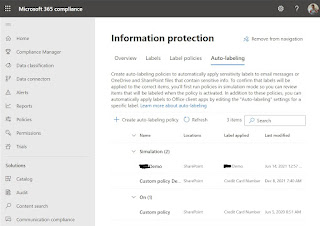
For example, to implement the following requirement, at least a license is needed that includes the Auto-Labeling feature: "All files stored in the Management Team should automatically be labeled as Internal Onyl." This is possible using the Office 365 E5 license or a license add-on such as Microsoft 365 E5 Security & Compliance. With this license, the Auto-Labeling feature in the Microsoft 365 Compliance Center will also be available:
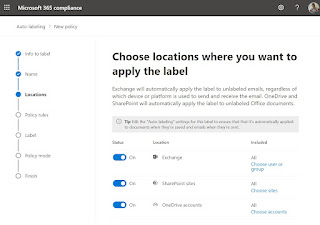
This allows content in Exchange, SharePoint and OneDrive to be automatically labeled based on rules:
However, this only applies to Office files of type Word (.docx), PowerPoint (.pptx), and Excel (.xlsx) in SharePoint and OneDrive. For Exchange Online, PDF attachments and Office files are checked against the conditions in the Auto-Labeling Policy. If there is a match, the email is labeled, but not the attachment. Details: Apply a sensitivity label to content automatically

Automatic labeling of non-Office files

Sensitive content is often also contained in non-office files. First and foremost, the PDF format is relevant, followed by formats such as *.jpg, *.png or Visio files (*.vsdx) etc. The complete list of formats supported by Microsoft Information Protection is listed in this article: Supported file types for classification and protection
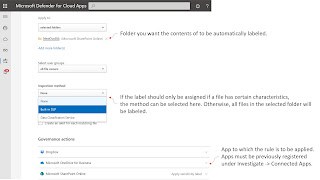
These filetypes can also be automatically labeled. For this scenario, a file policy is created in Defender for Cloud Apps:


This feature is not part of the Office 365 E5 license. It can be licensed via different packages as described here: Get started with Microsoft Defender for Cloud Apps

Protect other file types

When you need to encrypt files that are not included in the list of supported file types for classification and protection, you can use the Information Protection Client. 
The client can encrypt and decrypt any file format. However, if the format is not on the list of supported file types, the Information Protection Viewer cannot be used to show the file. The file has to be saved decrypted before it can be opened with the native client app. This is currently still the case for video formats, for example.
A way to protect such files by automatic labeling is shown in the following example:
  • Synchronize the folder with the video files to be encrypted with OneDrive for Business.
  • Encrypt the video files locally via script: Set-AIPFileLabel -Path C:\Project Videos\ -LabelId d9f23ae3-1324-1234-1234-f515f824c57b
  • OneDrive for Business then synchronizes the encrypted video files back to SharePoint Online
Microsoft has now announced a new feature that provides a similar result. This allows a SharePoint Online document library to be assigned a label that is then automatically applied to all files in this library.
https://www.microsoft.com/en-us/microsoft-365/roadmap?filters=&searchterms=85621

Samstag, 7. August 2021

Use app enforced restrictions vs. Use Conditional Access App Control

Blocking downloads or at least blocking them on unmanaged devices is a common requirement in the context of Microsoft Teams and SharePoint. Different features can be used to implement such requirements.

App Enforced Restrictions

Generally, these settings can be configured in the SharePoint Admin Center:
If this setting is used, the system automatically creates two conditional access policies in Azure AD:
These policies can be customized and thus also used as a starting point for a more detailed conditional access policy that, for example, only applies to selected users or groups.

The first screenshot above also shows the following message: We will automatically change the "Apps that don't use modern authentication" setting to block access (because these apps can't enforce this device-based restriction). The background is that apps that do not use modern authentication cannot enforce any device-based setting. If such apps remain allowed, the created conditional access policies can be bypassed.

Another information in the screenshot above makes clear that not all detailed settings are available via the UI in the SharePoint Admin Center: "If you don't want to limit or block access organization-wide, you can do so for specific sites". The link behind "Learn how" is to the documentation of the options via PowerShell.

Example: Set-SPOSite -Identity https://<SharePoint online URL>/sites/<name of site or OneDrive account> -ConditionalAccessPolicy AllowLimitedAccess

Options with Sensitivity Label

The solution via Sensitivity Label means that the settings in the SharePoint Admin Center are no longer used. The label offers the same options as for example "Allow limited, web-only access":
This setting has the following effect both in the SharePoint Admin Center and in the label configuration:
Users on unmanaged devices can only access the designated website through the browser, without being able to download, print, or sync files. They also cannot access content through apps, including Office desktop apps.
In this scenario, the corresponding label is assigned to one or more SharePoint sites. The label then enforces the configured setting. If the label and the settings in the SharePoint Admin Center conflict, the label wins.

With both options, it is thus possible to prevent downloading content from pages explicitly configured using PowerShell or labeled with a sensitivity label that enforces web-only access. It may take 5-10 minutes for the policy to take effect. It will not take effect for users who are already signed in from unmanaged devices.

Limitations of the solution with App Enforced Restrictions

The following restrictions apply when using App Enforced Restrictions:
  • If you limit access on unmanaged devices, users on managed devices must use one of the supported OS and browser combinations, or they will also have limited access.
  • If you limit access and edit a site from an unmanaged device, image web parts won't display images that you upload to the site assets library or directly to the web part.
  • If you're using classic SharePoint site templates, site images may not render correctly. This is because the policy prevents the original image files from being downloaded to the browser.
  • When Access Control for Unmanaged Devices in SharePoint is set to Allow limited, web-only access, SharePoint files cannot be downloaded but they can be previewed. The previews of Office files work in SharePoint but the previews do not work in Microsoft Yammer.

Use Conditional Access App Control

To create rules more granular / with advanced options, "Block Download" can also be enforced with Cloud App Security. This is done by using the "Conditional Access App Control" options in Conditional Access in Azure AD:
Cloud App Security then acts as a broker that is in front of the access to Office 365:

This also allows scenarios such as assigning a sensitivity label as soon as a document is downloaded.

Further options:
  • Add file filters to the policy: Extension, File Name, File Size, Sensitivity Label
  • Inspection Method: Can be used to configure include or exclude conditions 
  • Actions: Block, Protect (Apply sensitivity label to downloads & monitor all activities), require step-up authentication like MFA etc.,
  • Configure Alerts
Further details and how to implement the solution are described in this blogpost: Secure your environment by Conditional Access & App Controls

What is the difference between "Use app enforced restrictions" and "Use Conditional Access App Control"?

If the focus is only to prevent downloading on a unmanaged device, this can be achieved with both methods. The method via Microsoft Cloud App Security offers more detailed options, is not limited to SharePoint and Exchange, and does not have the limitations of App Enforced Restrictions. (see Limitations of the solution with App Enforced Restrictions) Another significant difference is the license required in each case. App Enforced Restrictions in combination with Azure AD Conditional Access required only an Azure AD P1 license. The Conditional Access App Control solution requires a Cloud App Security license for all affected users.


Sonntag, 2. Mai 2021

Showing Azure AD Sign-in locations in a world map

 "We need an overview showing from where people are logging on to our Microsoft Cloud environment."  This requirement came up as part of a project.And the first approach was to use the features that are directly available in Microsoft Cloud solutions:

Azure AD Sign-In Logs:

Here, however, came the request to display this info on a world map to visually see where the login-ins came from. Cloud App Security offers this feature as a standard feature on the dashboard (https://portal.cloudappsecurity.com/#/dashboard).

Cloud App Security:

However, the Cloud App Security feature is not available in all license bundles, and the dashboard can only be filtered by the apps used.

Solution

The Azure AD sign-in logs are also available as a workbook template in Azure Sentinel. And this workbook template can be customized / extended:

To add a world map to the standard workbook with the regions from which the accesses occurred, the following steps are necessary:

  • Azure Sentinel -> Workbooks -> Azure AD Sign-in logs -> View saved Workbook. (See screenshot above)
  • In the upper left pane, "Select Edit" and then on the "Sign-ins by Location" report, select the "Edit" option for that report:
  • In the edit mode the button "Add -> Add Query" is available. In the new query that is created, copy the text from the query "Sign-ins by Location" and select "Map" as visualization:
  • The values for "Location Info using" and "Country/Region field" in the Map Settings must be configured at least:
  • Result:

The workbook and therefore the map can now be filtered by the following values:
  • TimeRange
  • Apps
  • Users
  • Category (Sign-in Logs / Non interactive sign-in logs)

Related topics

The Traffic Analytics feature focuses on the following scenarios: https://docs.microsoft.com/en-us/azure/network-watcher/traffic-analytics

    • Visualize network activity across your Azure subscriptions and identify hot spots.
    • Identify security threats to, and secure your network, with information such as open-ports, applications attempting internet access, and virtual machines (VM) connecting to rogue networks.
    • Understand traffic flow patterns across Azure regions and the internet to optimize your network deployment for performance and capacity.
    • Pinpoint network misconfigurations leading to failed connections in your network. 


Mittwoch, 30. September 2020

Secure your environment by Conditional Access & App Controls

With the Azure AD Conditional Access feature, rules for access to Microsoft Cloud Services and other apps registered in Azure AD can be bound to conditions.

An example is the rule: When accessing with an unmanaged device, the user is prompted to use multi-factor authentication.

With the feature "Use Conditional Access App Control" as an option in the Session Controls area within Azure AD Conditional Access, advanced scenarios can be setup.

Options:

  • Prevent data exfiltration
  • Protect on download
  • Prevent upload of unlabeled files
  • Block potential malware
  • Monitor user sessions for compliance
  • Block access
  • Block custom activities

Example:

  • Automatically assign a sensitivity label when a file is downloaded.
  • Filter based on regular expressions: “Include Files that match a custom expression”
  • Block Upload if Maleware is detected.
  • This is can be done because the Cloud App Security service then acts as a proxy for accessing the application:

Setup Conditional Access App Control

The options listed above affect all resisted apps under https://portal.cloudappsecurity.com/#/connected-apps?tab=proxy.  By default, this list is empty:

To register an app, the wizard can be used in Cloud App Security via Investigate -> Connected Apps -> Conditional Access App Control Apps. Another and much simpler way is to use a conditional access policy as an easy start:

  1. Azure AD Security -> Conditional Access

  2. New Policy

  3. Section „Access controls“ -> „Session“

  4. Use „Use Conditional Access App Control“

  5. Use „Use custom policy to set an advanced policy in Cloud App Security“


Configure the policy in the menus "Users and Groups" etc. that it will be applied the next time the app to be registered is started. This then results in apps that are authenticated via Azure AD being automatically registered in Cloud App Security under „Conditional Access App Control“:

The above method works for the so called featured apps. In order to make this option work for the Office 365 Featured Apps, Office 365 must be registered under "Connected Apps" in Cloud App Security:

Once an app is registered, session policies can be created that will take effect when the app is used.

Example: If the user Oliver Hardy tries to download a document from Microsoft Teams (SharePoint) that contains the term "confidential", the download is blocked.

Further scenarios

  • Monitor / block activities based on file conditions like Classification Label, File Name, Files Size or File Extension
  • Apply rules based on Maleware detection
  • Apply classification label to downloads
  • Block downloads based on conditions
  • Monitor / block activities like Cut/Copy Item, Paste Item, Print Item, Send Item


Impact from the user's perspective

When opening the app, the user is notified that access is monitored by Cloud App Security. The fact that a proxy is involved can also be recognized by the URL. This now has the addition access-control.cas.ms:


If the user Oliver Hardy now tries to download a document he gets the following message: