Posts mit dem Label Teams werden angezeigt. Alle Posts anzeigen

Mittwoch, 24. April 2024

Sharing link „People in your organization“ & Copilot for Microsoft 365

Microsoft Copilot for Microsoft 365 only surfaces organizational data to which individual users have at least view permissions. Source: https://learn.microsoft.com/en-us/copilot/microsoft-365/microsoft-365-copilot-privacy#how-does-microsoft-copilot-for-microsoft-365-use-your-proprietary-organizational-data

The sharing function in SharePoint and OneDrive can be used to share content with users. It is then also possible to define which persons or groups are granted access and with which rights:

The following applies:
  • Anyone gives access to anyone who receives this link, whether they receive it directly from you or forwarded from someone else. This may include people outside of your organization.
  • People in <Your Organization> with the link gives anyone in your organization who has the link access to the file, whether they receive it directly from you or forwarded from someone else.
  • People with existing access can be used by people who already have access to the document or folder. It doesn't change any permissions and it doesn't share the link. Use this if you just want to send a link to somebody who already has access. 
  • Specific people gives access only to the people you specify, although other people may already have access. This may include people outside of your organization. If people forward the sharing invitation, only people who already have access to the item will be able to use the link.

For the options “Anyone ”, “People with existing access” and “Specific people”, everything described above also applies for Copilot => Microsoft Copilot for Microsoft 365 only displays organizational data for which individual users have at least display permissions.

The situation is slightly different with the option “People in <Your Organization> with the link”. The following applies here: 

Creating a People in your organization link will not make the associated file or folder appear in search results, be accessible via Copilot, or grant access to everyone within the organization. Simply creating this link does not provide organizational-wide access to the content. For individuals to access the file or folder, they must possess the link and it needs to be activated through redemption. A user can redeem the link by clicking on it, or in some instances, the link may be automatically redeemed when sent to someone via email, chat, or other communication methods. The link does not work for guests or other people outside your organization. 
Source and further details: https://learn.microsoft.com/en-us/sharepoint/deploy-file-collaboration#control-sharing

This can lead to non-transparent effects for users. For example, a user who has shared content in this way may assume that this information is now available to all users in the tenant and is therefore also accessible via Copilot. In the following example, the user Stan Laurel shares the files RefDoc.docx and SnabelesSnowball.docx via the “People in your organization” link.

Another user has received and clicked the link to the RefDoc.docx file, but not the link to the SnabelesSnowball.docx file.
This leads to the following result in Copilot although the user generally has access to both files:
Question to Copilot about the contents of the SnabelesSnowball.docx file for which the share link has not yet been clicked:
Question to Copilot about the contents of the RefDoc.docx file from which the sharing link has already been used at least once:
This effect, that a user is only granted access to the file once he has clicked on the sharing link, is also confirmed in another example. Here, Copilot is asked to create a list of all files that have been shared via the link type People in <your organization>. The file RefDoc.docx, whose sharing link has already been clicked, appears in the list. The file SnabelesSnowball.docx, for which this is not yet the case, is not mentioned.

There is also another side to this topic. If the default sharing link is “People in <Your Organization> with the link”, and this link is further promoted by people, for example by posting it in a Teams post or sending it by email, this can lead to all users suddenly receiving replies from Copilot to the content behind the link, even if this information was not intended for everyone in the company. So caution and a solid concept for dealing with the topic is necessary.
To see what kind of sharing links are used, the “Data access governance reports for SharePoint sites” can be used:

Source and further details: https://learn.microsoft.com/en-US/SharePoint/data-access-governance-reports?WT.mc_id=365AdminCSH_inproduct#sharing-links-reports


Sonntag, 4. Februar 2024

Case study on the use of Microsoft AI solutions

Currently, not a day goes by without news in the area of AI. The following article is about a project with a company from Germany that has used features from the Microsoft AI stack to implement solutions for employees' daily work.
Highlights

  • Added value of AI technologies in daily work
  • How can AI be used in the context of customer projects 
  • Requirements related to the AI Act and GDPR
  • How can AI be used effectively in harmony with the human factor
  • How does the secure use of AI solutions look in terms of an IT security strategy?

Challenges

As a leading consultancy strategy projects, the company's focus is on what their customers need. The human factor remains one of the most important aspects here. AI solutions must be easy to use and deliver reliable, reproducible results if they want to add value in day-to-day work. This made it even challenging to classify and use artificial intelligence correctly.
Statement taken during the project:
  • With the solutions based on Azure OpenAI, we speed up our qualification process and the final validation activities in consulting projects, which is a significant advantage - explains the management.
  • We use the Microsoft Azure solution architecture to meet the high requirements of our customers for the secure collection, storage and analysis of data - says the data protection officer.
  • By using the Azure tools for SecDevOps, i.e. the interaction between security, development and IT operations, we can automate and standardize processes. - This is how the CISO summarizes the framework for the AI solution.
These design principles, as outlined by the CISO, are the foundation for fulfilling the requirements of the GDPR and the AI Act / AI Regulation without any problems.
Even sensitive data with aspects relating to the Geschäftsgeheimnis-Gesetz / German Trade Secrets Act can now be processed by Microsoft's AI solutions.

Example / quote from the project: One of our customers has well over 100 existing patents. The customer now wanted to know what new product suggestions the AI would generate based on the existing patents.

Objectives and solutions in the project

The driver of successful companies is not exclusively digitalization. Our markets have been saturated for a long time now, and only a few sectors are still focused on real growth, but more often just on shifting market share. The pace of innovations is becoming ever tighter. However, speed is only effective if there is a strategic idea behind the innovations. Finding out whether an idea meets the actual requirements of the market takes time. The aggregation of survey results and feedback from beta phases takes time to complete. 
Beta testing for new processes and products always has to survive against established expertise and experience. This specialist knowledge exists either in the heads of employees or in countless internal company repositories, databases and knowledge sources. Making this knowledge usable when testing new solutions was a challenge that could be solved with AI.

Quote from the project: With the Microsoft 365 Chat function, we can answer questions relating to data in our M365 environment in seconds. As we store data and information from our customers in secure project rooms in Microsoft Teams, this function is also available to us there.

The Microsoft 365 Chat solution is a feature in the context of Microsoft Copilot. Here, the quality of the prompt that a user enters determines the quality of the result that the AI generates. It was therefore a key factor during the rollout to ensure employee empowerment through a training concept.
Data accuracy was necessary, especially in the area of quality management of results. Here, the typical hallucination of generative AI solutions was prevented by teaching existing large language models in Azure OpenAI and using predefined prompts.

The solutions:
  • Storing project data and information in Microsoft Teams / SharePoint means that this information can be analyzed using Microsoft 365 Chat.
  • Training concept for the use of AI solutions / Prompt Engineering
  • Special processes and quality control based on AI were made possible with customized Large Language Models in Azure OpenAI
  • Solutions relating to specific topics were implemented using predefined prompts/prompt extensions with Microsoft Copilot Studio. 

Benefits

A data-supported approach to developing new and innovative processes and products can be applied much more efficiently, quickly and scalably with AI. The definition of new solutions, as well as the associated testing and quality management, is also supported by AI solutions. 
  • Evaluating the current situation / evaluating exsisitng data pools in consulting projects
  • The creativity of generative AI solutions is used to identify new processes and approaches for product innovations
  • The human factor is seen as an initial component of the consulting approach, but can now focus on the essentials


Mittwoch, 30. März 2022

Microsoft Sentinel for Teams

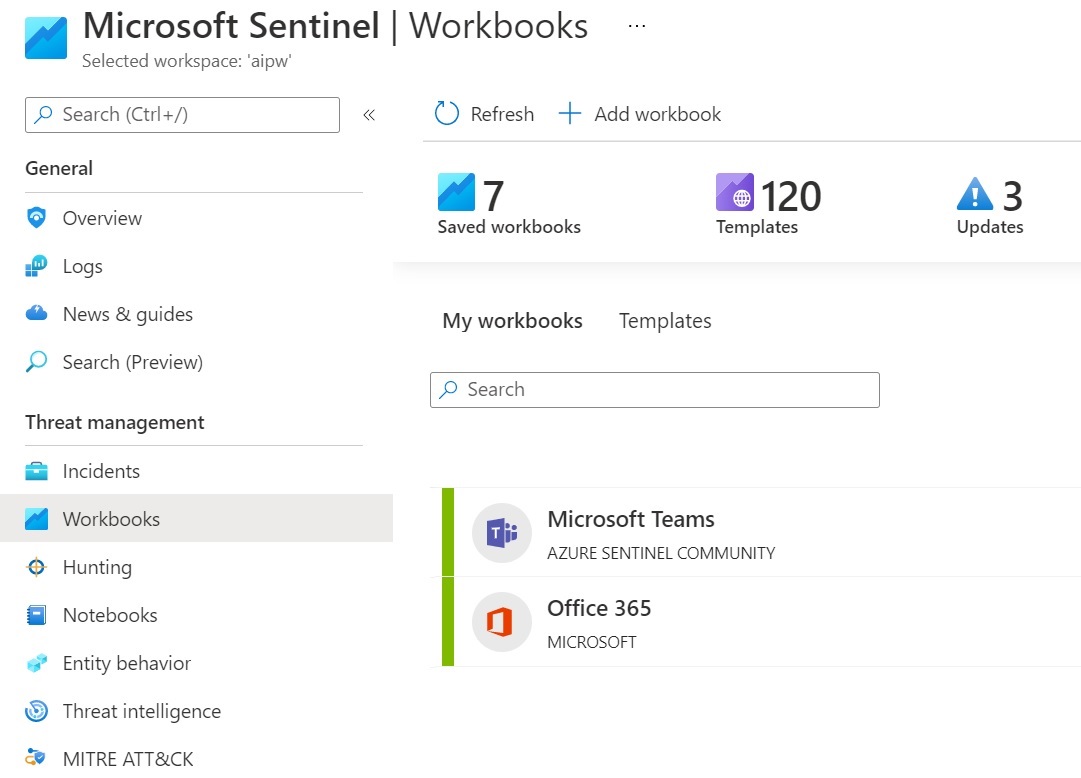
Microsoft Sentinel can be used via the Microsoft Teams workbook or the Office 365 workbook to monitor Teams. The integration is done via the Data Types OfficeActivity respectively via the logs of Microsoft Teams in M365.
In the Microsoft Sentinel Content Hub, the template "Microsoft Sentinel for Teams" is now also available as a preview. The template installs 2 Analytics Rule, 7 Hunting Query and 2 Playbooks with which Teams can be monitored and the logs can be filtered for threats.
The installation is dialog-driven and quite simple. When the deployment has been successfully completed, the following page is displayed with an overview of what was installed.

What is deployed?

Analytics

Analytics Rules are used to create rules for threat detection. The template creates two rules for Microsoft Teams:
  • External user added and removed in short timeframe: This rule flags when external users are added to a Team and then removed within an hour.
  • Multiple Teams deleted by a single user: This rule indicates when multiple Teams are deleted within one hour. 
These analysis rules are created in disabled mode and can be enabled / customized in the analysis rules gallery in Sentinel:

Hunting Queries

Microsoft Sentinel provides queries to search for threats in the connected data sources. This enables targeted searches for suspicious behavior or unusual activity. The template installs the following hunting queries with a focus on Microsoft Teams:
  • External user from a new organization added to Teams: This query identifies external users that have been added to Teams, where the user's domain has not yet been used.
  • Multiple Teams deleted by a single user: This query shows when multiple Teams have been deleted by a single user within a short period of time.
  • Bots added to multiple Teams: This query helps identify bots that have been added to multiple Teams in a short period of time.
  • User made owner of multiple Teams: This identifies users who have been made owners of multiple Teams.
  • Previously unseen bot or application added to Teams: New and possibly unapproved applications or bots added to Teams are identified with this query.
  • Files uploaded to Teams and access summary: This query shows files uploaded to SharePoint via a Teams chat and summarizes the users and IP addresses that accessed those files. This allows for the identification of anomalous file sharing patterns.
  • User added to Team and immediately uploads file: This identifies users who have been added to a Team or Chat and uploaded a file via Chat within one minute of being added. This could be an indicator of suspicious activity.

Playbooks

Playbooks are a collection of procedures that can be executed in response to an alert or incident. A playbook can be used to automate actions when certain warnings or incidents are detected.
A sticking point in the "Playbook" setup step, as seen in the screenshot, is that a user must be added here who has the right to connect to the Teams API.

To do this, this user must be given consent. A simple way to do this is described here: https://docs.microsoft.com/en-us/graph/auth-v2-user#consent-experience The user that you want to use logs in and grants consent. The fact that the link to which you are then redirected is empty is irrelevant.
The following playbooks are deployed:
  • IdentityProtection-TeamsBotResponse
  • Post-Message-Teams


Sonntag, 27. März 2022

Microsoft Teams Shared Channels

Shared Channels will be rolled out as a public preview in the coming weeks. This is a new channel type that will be added to the existing standard and private channels. Shared Channels allow collaboration with external users without the need for the user to switch tenants:
Shared channels can be configured as follows, via Teams Policies:
Shared Channels are based on Azure-AD B2B Direct Connect. This Azure-AD feature enables collaboration with external users without the need to add these users as B2B guests in Azure-AD. To use shared channels between tenants, both sides must configure B2B Direct Connect policies because the feature is disabled by default. Administrators can grant, restrict, or revoke access for external users on an individual, group, or client level:
More details about Cross-tenant access settings: Cross-tenant access settings in Azure AD

A separate SharePoint SiteCollection is created for each shared channel, just as for each private channel.  Conditinal Access Policies for SharePoint therefore also affect Shared Channels and the co-authoring of documents in these channels.


Dienstag, 15. Februar 2022

Restrict Microsoft Teams Copy & Paste

The need to restrict the copy & paste feature in Teams can have different reasons.
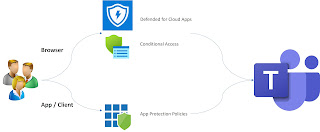
For example, it can prevent users from copying content from Teams chats and posting it in other apps. In general, it is important to consider whether these restrictions apply to the web version of Microsoft Teams or to the Teams client/app. Both can be restricted, but different solutions are used in each case:
A common scenario, for example, is to restrict the copy & paste feature for guest users. This can also increase security on unmanaged devices, for example in the case of guest users or a bring-your-own-device strategy.
To implement this scenario for browser access, a Conditional Access policy is created that only affects guest users/selected users or groups and in which Azure AD joined devices can be excluded.
If the Teams Client / the Teams App is used for access, a App Protection Policy must be used in Endpoint Manager. This policy can then be restricted to "unmanaged" devices, for example.

Restrict copy & paste when accessing via the browser

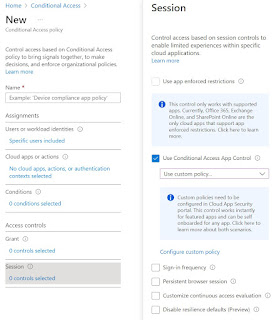
When accessing via the browser, the request is redirected from a conditional access policy via Defender for Cloud Apps, with the "Use Conditional Access App Control" setting:


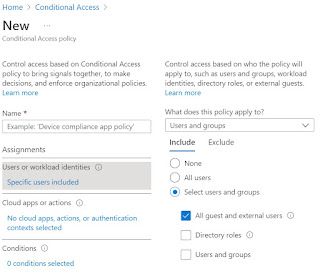
The conditional access rule can be restricted to guests or specific groups from Azure AD, for example:

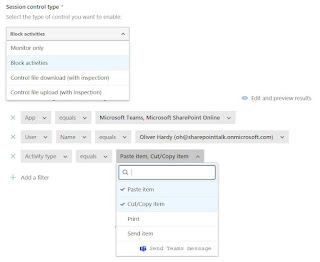
A rule must then be created in Defender for Cloud Apps that prevents the copy & paste capability:

As the screenshot shows, the following other capabilities can also be restricted:
  • Print
  • Send item
  • Send Teams message
In the "Session control type" section of the policy, you can see that uploads or downloads can also be restricted in this way. A separate policy must then be created for this, since the filter in the "Session control type" section only allows a single filter.
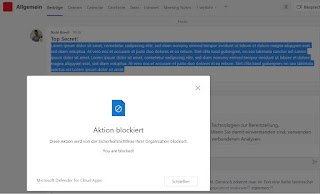
The user now receives the following notification when trying to copy data from a Teams chat:

Restrict copy & paste when accessing via Teams client / Teams app

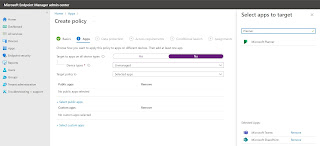
App Protection rules are used when accessing via the client / app. This is a feature in Microsoft Endpoint Manger. For the scenario of restricting access from unmanaged devices, the "unmanaged" option is selected for the Device Type in the policy. In the "Apps" section of the policy, the applications that are affected by the policy are defined. As the screenshot shows, the same policy can also cover additional apps, such as Microsoft Planner:

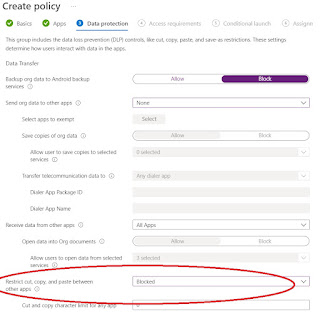
In the section "Data protection" the setting "Restrict cut, copy, and paste between other apps" is available:

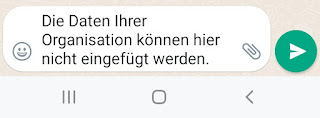
The user will now see this message when trying to copy data from a Teams chat and post it in WhatsApp, for example:

The following additional settings can be configured in the App Protection Policy:
  • Backup org data to Android backup services
  • Send org data to other apps
  • Receive data from other apps
  • Screen capture
  • Printing org data
  • Restrict web content transfer with other apps


Mittwoch, 15. Dezember 2021

Automatically encrypt content in Office 365 services

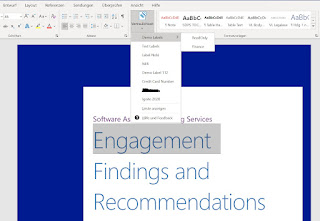
Due to the success of Microsoft Teams, the question of which data / whether sensitive data can be stored and processed in Office 365 is being asked more and more. This can be triggered by aspects of the GDPR as well as company- or industry-specific compliance rules. With the Sensitivity Labels, Microsoft Information Protection provides an option for labeling and additionally encrypting content. This is generally an option for storing and processing sensitive data in the cloud. The feature is included in the Office 365 E3 license and higher. However, only manual labeling is available in the Office 365 E3 license.
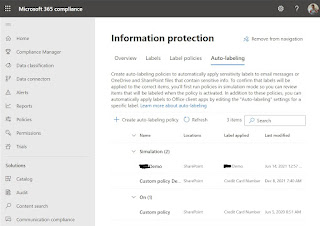
For example, to implement the following requirement, at least a license is needed that includes the Auto-Labeling feature: "All files stored in the Management Team should automatically be labeled as Internal Onyl." This is possible using the Office 365 E5 license or a license add-on such as Microsoft 365 E5 Security & Compliance. With this license, the Auto-Labeling feature in the Microsoft 365 Compliance Center will also be available:
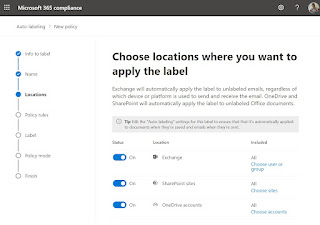
This allows content in Exchange, SharePoint and OneDrive to be automatically labeled based on rules:
However, this only applies to Office files of type Word (.docx), PowerPoint (.pptx), and Excel (.xlsx) in SharePoint and OneDrive. For Exchange Online, PDF attachments and Office files are checked against the conditions in the Auto-Labeling Policy. If there is a match, the email is labeled, but not the attachment. Details: Apply a sensitivity label to content automatically

Automatic labeling of non-Office files

Sensitive content is often also contained in non-office files. First and foremost, the PDF format is relevant, followed by formats such as *.jpg, *.png or Visio files (*.vsdx) etc. The complete list of formats supported by Microsoft Information Protection is listed in this article: Supported file types for classification and protection
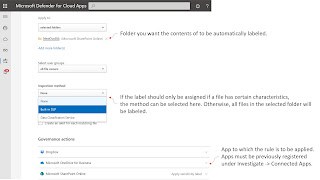
These filetypes can also be automatically labeled. For this scenario, a file policy is created in Defender for Cloud Apps:


This feature is not part of the Office 365 E5 license. It can be licensed via different packages as described here: Get started with Microsoft Defender for Cloud Apps

Protect other file types

When you need to encrypt files that are not included in the list of supported file types for classification and protection, you can use the Information Protection Client. 
The client can encrypt and decrypt any file format. However, if the format is not on the list of supported file types, the Information Protection Viewer cannot be used to show the file. The file has to be saved decrypted before it can be opened with the native client app. This is currently still the case for video formats, for example.
A way to protect such files by automatic labeling is shown in the following example:
  • Synchronize the folder with the video files to be encrypted with OneDrive for Business.
  • Encrypt the video files locally via script: Set-AIPFileLabel -Path C:\Project Videos\ -LabelId d9f23ae3-1324-1234-1234-f515f824c57b
  • OneDrive for Business then synchronizes the encrypted video files back to SharePoint Online
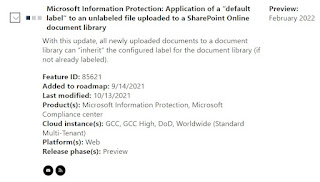
Microsoft has now announced a new feature that provides a similar result. This allows a SharePoint Online document library to be assigned a label that is then automatically applied to all files in this library.
https://www.microsoft.com/en-us/microsoft-365/roadmap?filters=&searchterms=85621

Freitag, 26. November 2021

Step by Step guide - limit access to Teams

Step by Step guide & scenarios to limit access to Teams (SharePoint, Exchange, etc.) from an unmanaged device.

There are already some general articles on this topic in the internet. This article is a concrete step by step guide to implement the following example:
  • Access to teams should only be possible via the browser, which has the advantage that no local log files etc. are written or data is not stored in a local device backup. This is especially important for mobile devices (iOS, Android), as these backups may be stored in further cloud services.
  • Download of files should not be possible. Accessing and editing in the browser shall be possible.
OR
  • Download, access and editing of files should not be possible.

Solution

Services involved in this example:
  • App Restriction (SharePoint & EXO Admin Center)
  • Azure AD Conditional Access
To give separate option to selected users the way described here cannot be used. The reason is that in this example the Conditional Access Policy in the Session section refers to the App Restriction settings in the respective Admin Centers of Exchange and SharePoint - and these are global for the whole tenant. An option for more granular settings is to use PowerShell to apply the App Restriction only to selected SharePoint sites.
Example: Set-SPOSite -Identity https://<SharePoint online URL>/sites/<name of site or OneDrive account> -ConditionalAccessPolicy AllowLimitedAccess

Alternative methods for more selective settings related to specific users, selected Teams, or scenarios such as "access from the corporate network" can be implemented using the following methods:

Step by step guide on the example

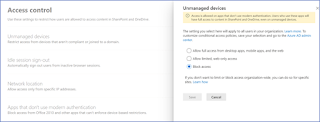
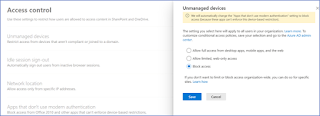
SharePoint admin center -> Access control -> Unmanaged devices -> Allow limited, web only access:

This auto generates a Conditional Access Policy:

Settings in the Conditional Access Policy:

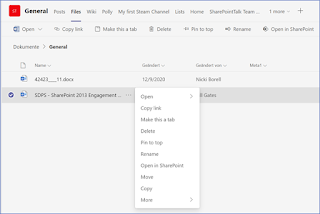
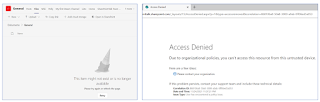
User experience in Teams on unmanaged device -> no download available:

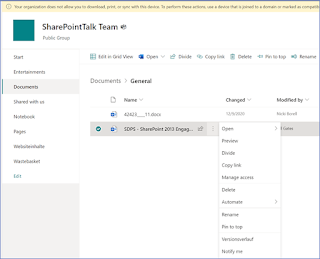
User experience in SharePoint on unmanaged device -> no download available:

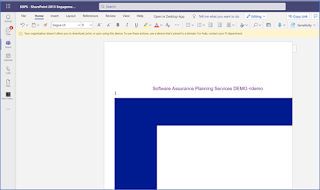
User can open and edit documents in Teams Web-client:

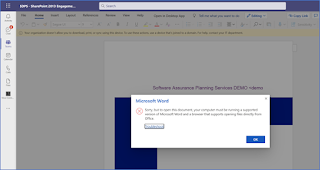
The document cannot be open in the Office client:

Switching the App Restriction to block access:

The Conditional Access Policy keeps as it is, but the user experience changed:
(Teams chat is still available)

Tips & Tricks

  • It can take several minutes for a Conditional Access policy to take effect / for a change to take effect.
  • For tests in which policies are changed, the following applies: Always log off, close browser / clear browser cache, wait several minutes and then log in again.

Samstag, 7. August 2021

Use app enforced restrictions vs. Use Conditional Access App Control

Blocking downloads or at least blocking them on unmanaged devices is a common requirement in the context of Microsoft Teams and SharePoint. Different features can be used to implement such requirements.

App Enforced Restrictions

Generally, these settings can be configured in the SharePoint Admin Center:
If this setting is used, the system automatically creates two conditional access policies in Azure AD:
These policies can be customized and thus also used as a starting point for a more detailed conditional access policy that, for example, only applies to selected users or groups.

The first screenshot above also shows the following message: We will automatically change the "Apps that don't use modern authentication" setting to block access (because these apps can't enforce this device-based restriction). The background is that apps that do not use modern authentication cannot enforce any device-based setting. If such apps remain allowed, the created conditional access policies can be bypassed.

Another information in the screenshot above makes clear that not all detailed settings are available via the UI in the SharePoint Admin Center: "If you don't want to limit or block access organization-wide, you can do so for specific sites". The link behind "Learn how" is to the documentation of the options via PowerShell.

Example: Set-SPOSite -Identity https://<SharePoint online URL>/sites/<name of site or OneDrive account> -ConditionalAccessPolicy AllowLimitedAccess

Options with Sensitivity Label

The solution via Sensitivity Label means that the settings in the SharePoint Admin Center are no longer used. The label offers the same options as for example "Allow limited, web-only access":
This setting has the following effect both in the SharePoint Admin Center and in the label configuration:
Users on unmanaged devices can only access the designated website through the browser, without being able to download, print, or sync files. They also cannot access content through apps, including Office desktop apps.
In this scenario, the corresponding label is assigned to one or more SharePoint sites. The label then enforces the configured setting. If the label and the settings in the SharePoint Admin Center conflict, the label wins.

With both options, it is thus possible to prevent downloading content from pages explicitly configured using PowerShell or labeled with a sensitivity label that enforces web-only access. It may take 5-10 minutes for the policy to take effect. It will not take effect for users who are already signed in from unmanaged devices.

Limitations of the solution with App Enforced Restrictions

The following restrictions apply when using App Enforced Restrictions:
  • If you limit access on unmanaged devices, users on managed devices must use one of the supported OS and browser combinations, or they will also have limited access.
  • If you limit access and edit a site from an unmanaged device, image web parts won't display images that you upload to the site assets library or directly to the web part.
  • If you're using classic SharePoint site templates, site images may not render correctly. This is because the policy prevents the original image files from being downloaded to the browser.
  • When Access Control for Unmanaged Devices in SharePoint is set to Allow limited, web-only access, SharePoint files cannot be downloaded but they can be previewed. The previews of Office files work in SharePoint but the previews do not work in Microsoft Yammer.

Use Conditional Access App Control

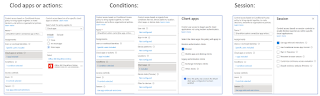
To create rules more granular / with advanced options, "Block Download" can also be enforced with Cloud App Security. This is done by using the "Conditional Access App Control" options in Conditional Access in Azure AD:
Cloud App Security then acts as a broker that is in front of the access to Office 365:

This also allows scenarios such as assigning a sensitivity label as soon as a document is downloaded.

Further options:
  • Add file filters to the policy: Extension, File Name, File Size, Sensitivity Label
  • Inspection Method: Can be used to configure include or exclude conditions 
  • Actions: Block, Protect (Apply sensitivity label to downloads & monitor all activities), require step-up authentication like MFA etc.,
  • Configure Alerts
Further details and how to implement the solution are described in this blogpost: Secure your environment by Conditional Access & App Controls

What is the difference between "Use app enforced restrictions" and "Use Conditional Access App Control"?

If the focus is only to prevent downloading on a unmanaged device, this can be achieved with both methods. The method via Microsoft Cloud App Security offers more detailed options, is not limited to SharePoint and Exchange, and does not have the limitations of App Enforced Restrictions. (see Limitations of the solution with App Enforced Restrictions) Another significant difference is the license required in each case. App Enforced Restrictions in combination with Azure AD Conditional Access required only an Azure AD P1 license. The Conditional Access App Control solution requires a Cloud App Security license for all affected users.


Sonntag, 9. Mai 2021

Zero Trust (TIC3.0) Workbook & Microsoft Teams

Microsoft provided a powerful new Azure Sentinel Workbook: https://techcommunity.microsoft.com/t5/azure-sentinel/what-s-new-azure-sentinel-zero-trust-tic3-0-workbook/ba-p/2315195

The Zero Trust (TIC3.0) Workbook has two general aspects. On the one hand, it provides a topic-based overview of Microsoft Security & Compliance features:

This "overview" can be filtered and segmented by topics:


The other aspect is that this is not just static content. Wherever possible, the data from the tenant is displayed for the selected topic:

As shown in the screenshot, it is always possible to jump from the Zero Trust (TIC3.0) Workbook to the underlying KQL Querrey in order to evaluate further details.

Whether data can be viewed from the tenant depends on which services are included in Azure Sentinel. Example:

Microsoft Teams & Zero Trust (TIC3.0) Workbook

With the "Unified Communications & Collaboration" filter, the focus of the Workbook is among other things on the Microsoft Teams service. Here, recommendations and details of a Zero Trust strategy are now also displayed as well as data on the tenant:
The Zero Trust (TIC3.0) Workbook can therefore be used to develop an IT security and compliance strategy on the one hand, and on the other hand provides direct data for each topic that is selected.
The focus is not only on the SaaS solutions around Office 365; with the connectors that can be integrated into Azure Sentinel, a comprehensive overall picture is easily possible.