Posts mit dem Label Sentinel werden angezeigt. Alle Posts anzeigen

Mittwoch, 30. März 2022

Microsoft Sentinel for Teams

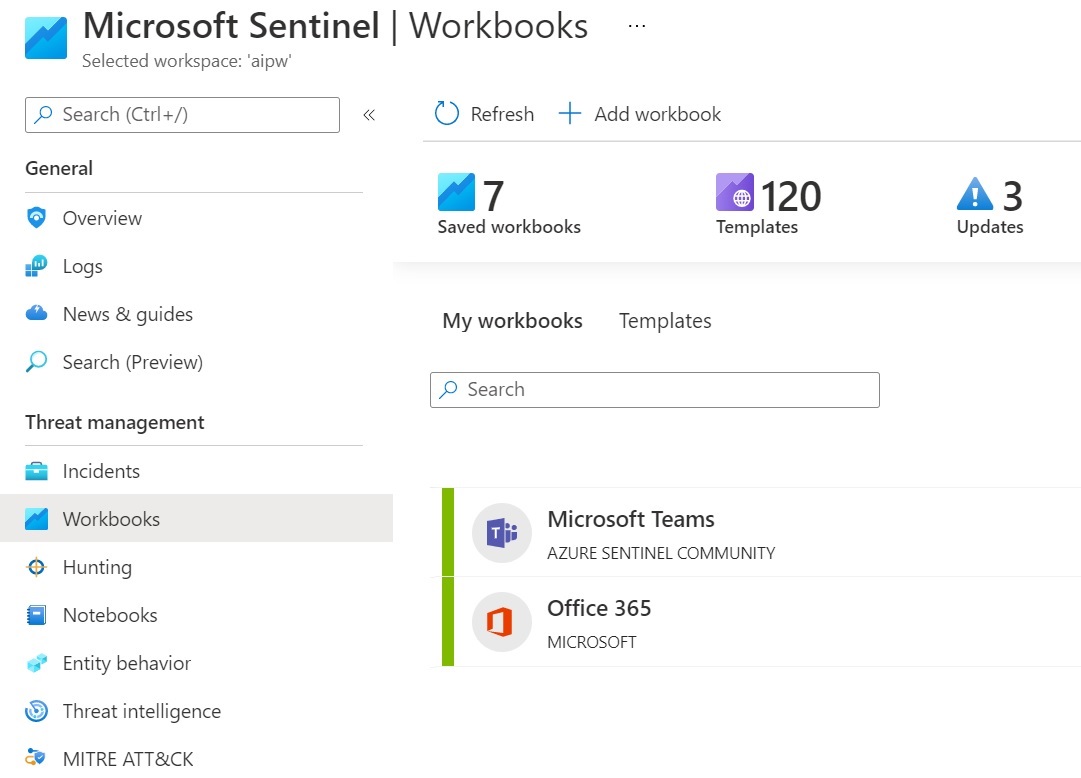
Microsoft Sentinel can be used via the Microsoft Teams workbook or the Office 365 workbook to monitor Teams. The integration is done via the Data Types OfficeActivity respectively via the logs of Microsoft Teams in M365.
In the Microsoft Sentinel Content Hub, the template "Microsoft Sentinel for Teams" is now also available as a preview. The template installs 2 Analytics Rule, 7 Hunting Query and 2 Playbooks with which Teams can be monitored and the logs can be filtered for threats.
The installation is dialog-driven and quite simple. When the deployment has been successfully completed, the following page is displayed with an overview of what was installed.

What is deployed?

Analytics

Analytics Rules are used to create rules for threat detection. The template creates two rules for Microsoft Teams:
  • External user added and removed in short timeframe: This rule flags when external users are added to a Team and then removed within an hour.
  • Multiple Teams deleted by a single user: This rule indicates when multiple Teams are deleted within one hour. 
These analysis rules are created in disabled mode and can be enabled / customized in the analysis rules gallery in Sentinel:

Hunting Queries

Microsoft Sentinel provides queries to search for threats in the connected data sources. This enables targeted searches for suspicious behavior or unusual activity. The template installs the following hunting queries with a focus on Microsoft Teams:
  • External user from a new organization added to Teams: This query identifies external users that have been added to Teams, where the user's domain has not yet been used.
  • Multiple Teams deleted by a single user: This query shows when multiple Teams have been deleted by a single user within a short period of time.
  • Bots added to multiple Teams: This query helps identify bots that have been added to multiple Teams in a short period of time.
  • User made owner of multiple Teams: This identifies users who have been made owners of multiple Teams.
  • Previously unseen bot or application added to Teams: New and possibly unapproved applications or bots added to Teams are identified with this query.
  • Files uploaded to Teams and access summary: This query shows files uploaded to SharePoint via a Teams chat and summarizes the users and IP addresses that accessed those files. This allows for the identification of anomalous file sharing patterns.
  • User added to Team and immediately uploads file: This identifies users who have been added to a Team or Chat and uploaded a file via Chat within one minute of being added. This could be an indicator of suspicious activity.

Playbooks

Playbooks are a collection of procedures that can be executed in response to an alert or incident. A playbook can be used to automate actions when certain warnings or incidents are detected.
A sticking point in the "Playbook" setup step, as seen in the screenshot, is that a user must be added here who has the right to connect to the Teams API.

To do this, this user must be given consent. A simple way to do this is described here: https://docs.microsoft.com/en-us/graph/auth-v2-user#consent-experience The user that you want to use logs in and grants consent. The fact that the link to which you are then redirected is empty is irrelevant.
The following playbooks are deployed:
  • IdentityProtection-TeamsBotResponse
  • Post-Message-Teams


Sonntag, 9. Mai 2021

Zero Trust (TIC3.0) Workbook & Microsoft Teams

Microsoft provided a powerful new Azure Sentinel Workbook: https://techcommunity.microsoft.com/t5/azure-sentinel/what-s-new-azure-sentinel-zero-trust-tic3-0-workbook/ba-p/2315195

The Zero Trust (TIC3.0) Workbook has two general aspects. On the one hand, it provides a topic-based overview of Microsoft Security & Compliance features:

This "overview" can be filtered and segmented by topics:


The other aspect is that this is not just static content. Wherever possible, the data from the tenant is displayed for the selected topic:

As shown in the screenshot, it is always possible to jump from the Zero Trust (TIC3.0) Workbook to the underlying KQL Querrey in order to evaluate further details.

Whether data can be viewed from the tenant depends on which services are included in Azure Sentinel. Example:

Microsoft Teams & Zero Trust (TIC3.0) Workbook

With the "Unified Communications & Collaboration" filter, the focus of the Workbook is among other things on the Microsoft Teams service. Here, recommendations and details of a Zero Trust strategy are now also displayed as well as data on the tenant:
The Zero Trust (TIC3.0) Workbook can therefore be used to develop an IT security and compliance strategy on the one hand, and on the other hand provides direct data for each topic that is selected.
The focus is not only on the SaaS solutions around Office 365; with the connectors that can be integrated into Azure Sentinel, a comprehensive overall picture is easily possible.


Sonntag, 2. Mai 2021

Showing Azure AD Sign-in locations in a world map

 "We need an overview showing from where people are logging on to our Microsoft Cloud environment."  This requirement came up as part of a project.And the first approach was to use the features that are directly available in Microsoft Cloud solutions:

Azure AD Sign-In Logs:

Here, however, came the request to display this info on a world map to visually see where the login-ins came from. Cloud App Security offers this feature as a standard feature on the dashboard (https://portal.cloudappsecurity.com/#/dashboard).

Cloud App Security:

However, the Cloud App Security feature is not available in all license bundles, and the dashboard can only be filtered by the apps used.

Solution

The Azure AD sign-in logs are also available as a workbook template in Azure Sentinel. And this workbook template can be customized / extended:

To add a world map to the standard workbook with the regions from which the accesses occurred, the following steps are necessary:

  • Azure Sentinel -> Workbooks -> Azure AD Sign-in logs -> View saved Workbook. (See screenshot above)
  • In the upper left pane, "Select Edit" and then on the "Sign-ins by Location" report, select the "Edit" option for that report:
  • In the edit mode the button "Add -> Add Query" is available. In the new query that is created, copy the text from the query "Sign-ins by Location" and select "Map" as visualization:
  • The values for "Location Info using" and "Country/Region field" in the Map Settings must be configured at least:
  • Result:

The workbook and therefore the map can now be filtered by the following values:
  • TimeRange
  • Apps
  • Users
  • Category (Sign-in Logs / Non interactive sign-in logs)

Related topics

The Traffic Analytics feature focuses on the following scenarios: https://docs.microsoft.com/en-us/azure/network-watcher/traffic-analytics

    • Visualize network activity across your Azure subscriptions and identify hot spots.
    • Identify security threats to, and secure your network, with information such as open-ports, applications attempting internet access, and virtual machines (VM) connecting to rogue networks.
    • Understand traffic flow patterns across Azure regions and the internet to optimize your network deployment for performance and capacity.
    • Pinpoint network misconfigurations leading to failed connections in your network.