Posts mit dem Label Conditional Access werden angezeigt. Alle Posts anzeigen

Donnerstag, 7. September 2023

All You Need is Guest

At Blackhat 2023, there was a session called "All You Need is Guest". The session describes how to highjack a Microsoft 365 tenant with a guest user via the Power Platform. There is also already the tool you need for this on GitHub: power-pwn.
In the Microsoft 365 tenant, only a trial / seed license for the PowerPlatform must be available. As of today, this license type cannot be declined administratively or it is not possible to completely prevent users from procuring this license themselves via settings in Microsoft 365. Trial licenses or "Self Service Purchase" can be configured. This is described here: Manage self-service purchases and trials. There are also scripts available, such as this one on GitHub, to disable everything that can be disabled:  AllowSelfServicePurchase for the MSCommerce PowerShell module. However, the so-called Seeded License cannot be deactivated and is always available to the user.

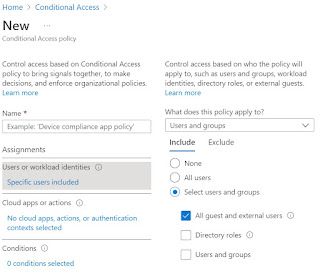
To protect against an attack, the easiest way is to set up a Conditonal Access Policy that denies guest users access to the PowerPlatform:
However, depending on whether guest users need access to PowerPlatform as part of business processes, details can be selected in the settings for "Specific users included":


Dienstag, 15. Februar 2022

Restrict Microsoft Teams Copy & Paste

The need to restrict the copy & paste feature in Teams can have different reasons.
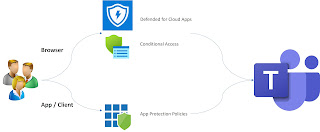
For example, it can prevent users from copying content from Teams chats and posting it in other apps. In general, it is important to consider whether these restrictions apply to the web version of Microsoft Teams or to the Teams client/app. Both can be restricted, but different solutions are used in each case:
A common scenario, for example, is to restrict the copy & paste feature for guest users. This can also increase security on unmanaged devices, for example in the case of guest users or a bring-your-own-device strategy.
To implement this scenario for browser access, a Conditional Access policy is created that only affects guest users/selected users or groups and in which Azure AD joined devices can be excluded.
If the Teams Client / the Teams App is used for access, a App Protection Policy must be used in Endpoint Manager. This policy can then be restricted to "unmanaged" devices, for example.

Restrict copy & paste when accessing via the browser

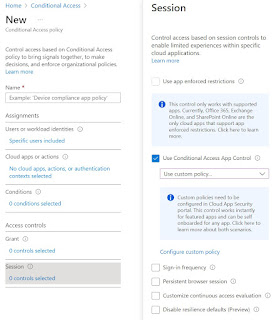
When accessing via the browser, the request is redirected from a conditional access policy via Defender for Cloud Apps, with the "Use Conditional Access App Control" setting:


The conditional access rule can be restricted to guests or specific groups from Azure AD, for example:

A rule must then be created in Defender for Cloud Apps that prevents the copy & paste capability:
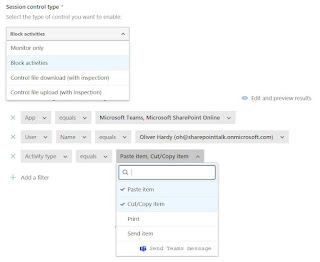
As the screenshot shows, the following other capabilities can also be restricted:
  • Print
  • Send item
  • Send Teams message
In the "Session control type" section of the policy, you can see that uploads or downloads can also be restricted in this way. A separate policy must then be created for this, since the filter in the "Session control type" section only allows a single filter.
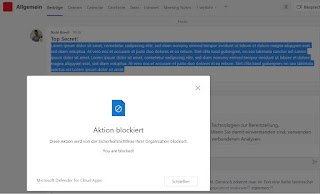
The user now receives the following notification when trying to copy data from a Teams chat:

Restrict copy & paste when accessing via Teams client / Teams app

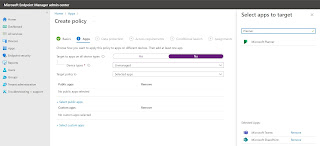
App Protection rules are used when accessing via the client / app. This is a feature in Microsoft Endpoint Manger. For the scenario of restricting access from unmanaged devices, the "unmanaged" option is selected for the Device Type in the policy. In the "Apps" section of the policy, the applications that are affected by the policy are defined. As the screenshot shows, the same policy can also cover additional apps, such as Microsoft Planner:

In the section "Data protection" the setting "Restrict cut, copy, and paste between other apps" is available:
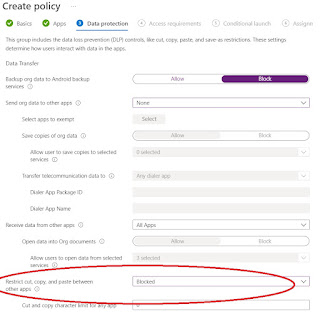
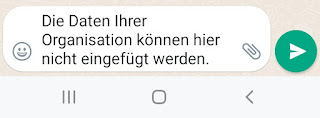
The user will now see this message when trying to copy data from a Teams chat and post it in WhatsApp, for example:

The following additional settings can be configured in the App Protection Policy:
  • Backup org data to Android backup services
  • Send org data to other apps
  • Receive data from other apps
  • Screen capture
  • Printing org data
  • Restrict web content transfer with other apps


Freitag, 26. November 2021

Step by Step guide - limit access to Teams

Step by Step guide & scenarios to limit access to Teams (SharePoint, Exchange, etc.) from an unmanaged device.

There are already some general articles on this topic in the internet. This article is a concrete step by step guide to implement the following example:
  • Access to teams should only be possible via the browser, which has the advantage that no local log files etc. are written or data is not stored in a local device backup. This is especially important for mobile devices (iOS, Android), as these backups may be stored in further cloud services.
  • Download of files should not be possible. Accessing and editing in the browser shall be possible.
OR
  • Download, access and editing of files should not be possible.

Solution

Services involved in this example:
  • App Restriction (SharePoint & EXO Admin Center)
  • Azure AD Conditional Access
To give separate option to selected users the way described here cannot be used. The reason is that in this example the Conditional Access Policy in the Session section refers to the App Restriction settings in the respective Admin Centers of Exchange and SharePoint - and these are global for the whole tenant. An option for more granular settings is to use PowerShell to apply the App Restriction only to selected SharePoint sites.
Example: Set-SPOSite -Identity https://<SharePoint online URL>/sites/<name of site or OneDrive account> -ConditionalAccessPolicy AllowLimitedAccess

Alternative methods for more selective settings related to specific users, selected Teams, or scenarios such as "access from the corporate network" can be implemented using the following methods:

Step by step guide on the example

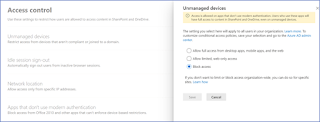
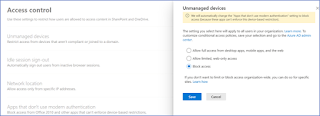
SharePoint admin center -> Access control -> Unmanaged devices -> Allow limited, web only access:

This auto generates a Conditional Access Policy:

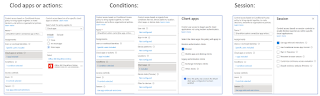
Settings in the Conditional Access Policy:

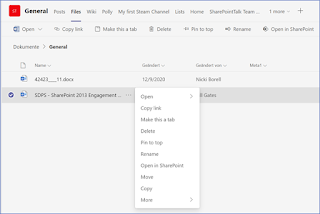
User experience in Teams on unmanaged device -> no download available:

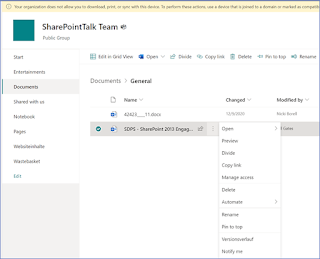
User experience in SharePoint on unmanaged device -> no download available:

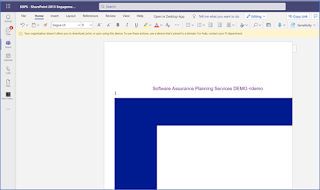
User can open and edit documents in Teams Web-client:

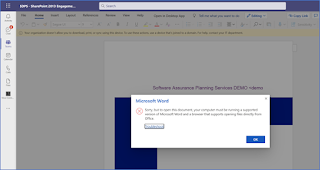
The document cannot be open in the Office client:

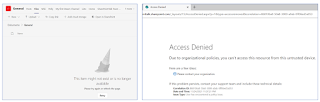
Switching the App Restriction to block access:

The Conditional Access Policy keeps as it is, but the user experience changed:
(Teams chat is still available)

Tips & Tricks

  • It can take several minutes for a Conditional Access policy to take effect / for a change to take effect.
  • For tests in which policies are changed, the following applies: Always log off, close browser / clear browser cache, wait several minutes and then log in again.

Samstag, 30. Oktober 2021

Azure AD Conditional Access | Authentication Context

The Authentication Context feature can be used to add additional and granular security to access apps or data in apps such as SharePoint or Exchange.

Example: Access to SharePoint sites or data in SharePoint is only permitted with devices managed in Intune. This is enforced via a conditional access policy. For special SharePoint sites containing highly sensitive data, access is also only permitted from the company network.

Until now, this was not possible because a conditional access policy always referred to the app as such, i.e. to SharePoint in the example above. With the Authentication Context in a Conditional Access Policy, this scenario is now possible.

Authentication Context

The feature is still in preview. The following limitations apply to the preview:

  • Deleting authentication context definitions is not possible in the preview.
  • The preview is limited to a total of 25 authentication context definitions.

An Authentication Context is created in the Conditional Access menu in the Azure Portal:


The Authentication Context is nothing more than a container:
The Authentication Context feature can then be selected in a Conditional Access Policy in the “Cloud Apps or Actions” menu item.
This adds another option to the already existing cloud apps and user actions.

Using an Authentication Context  

To implement the example from above, a Sensitivity Label is now used. The Authentication Context is configured in the Label:
The label is then assigned to the corresponding SharePoint site. If this SharePoint site is now accessed, the conditional access policy in which the authentication context is stored applies:
The whole process:
Example:
User Stan Laurel logs into Office 365 and goes to the SharePoint app:
Now he selects the SharePoint site "SPO Authentication Context DEMO" and then gets the message that access is not possible.
However, the reason here is not permissions, but that a conditional access policy, as described above, only allows access from the company network.

Samstag, 7. August 2021

Use app enforced restrictions vs. Use Conditional Access App Control

Blocking downloads or at least blocking them on unmanaged devices is a common requirement in the context of Microsoft Teams and SharePoint. Different features can be used to implement such requirements.

App Enforced Restrictions

Generally, these settings can be configured in the SharePoint Admin Center:
If this setting is used, the system automatically creates two conditional access policies in Azure AD:
These policies can be customized and thus also used as a starting point for a more detailed conditional access policy that, for example, only applies to selected users or groups.

The first screenshot above also shows the following message: We will automatically change the "Apps that don't use modern authentication" setting to block access (because these apps can't enforce this device-based restriction). The background is that apps that do not use modern authentication cannot enforce any device-based setting. If such apps remain allowed, the created conditional access policies can be bypassed.

Another information in the screenshot above makes clear that not all detailed settings are available via the UI in the SharePoint Admin Center: "If you don't want to limit or block access organization-wide, you can do so for specific sites". The link behind "Learn how" is to the documentation of the options via PowerShell.

Example: Set-SPOSite -Identity https://<SharePoint online URL>/sites/<name of site or OneDrive account> -ConditionalAccessPolicy AllowLimitedAccess

Options with Sensitivity Label

The solution via Sensitivity Label means that the settings in the SharePoint Admin Center are no longer used. The label offers the same options as for example "Allow limited, web-only access":
This setting has the following effect both in the SharePoint Admin Center and in the label configuration:
Users on unmanaged devices can only access the designated website through the browser, without being able to download, print, or sync files. They also cannot access content through apps, including Office desktop apps.
In this scenario, the corresponding label is assigned to one or more SharePoint sites. The label then enforces the configured setting. If the label and the settings in the SharePoint Admin Center conflict, the label wins.

With both options, it is thus possible to prevent downloading content from pages explicitly configured using PowerShell or labeled with a sensitivity label that enforces web-only access. It may take 5-10 minutes for the policy to take effect. It will not take effect for users who are already signed in from unmanaged devices.

Limitations of the solution with App Enforced Restrictions

The following restrictions apply when using App Enforced Restrictions:
  • If you limit access on unmanaged devices, users on managed devices must use one of the supported OS and browser combinations, or they will also have limited access.
  • If you limit access and edit a site from an unmanaged device, image web parts won't display images that you upload to the site assets library or directly to the web part.
  • If you're using classic SharePoint site templates, site images may not render correctly. This is because the policy prevents the original image files from being downloaded to the browser.
  • When Access Control for Unmanaged Devices in SharePoint is set to Allow limited, web-only access, SharePoint files cannot be downloaded but they can be previewed. The previews of Office files work in SharePoint but the previews do not work in Microsoft Yammer.

Use Conditional Access App Control

To create rules more granular / with advanced options, "Block Download" can also be enforced with Cloud App Security. This is done by using the "Conditional Access App Control" options in Conditional Access in Azure AD:
Cloud App Security then acts as a broker that is in front of the access to Office 365:

This also allows scenarios such as assigning a sensitivity label as soon as a document is downloaded.

Further options:
  • Add file filters to the policy: Extension, File Name, File Size, Sensitivity Label
  • Inspection Method: Can be used to configure include or exclude conditions 
  • Actions: Block, Protect (Apply sensitivity label to downloads & monitor all activities), require step-up authentication like MFA etc.,
  • Configure Alerts
Further details and how to implement the solution are described in this blogpost: Secure your environment by Conditional Access & App Controls

What is the difference between "Use app enforced restrictions" and "Use Conditional Access App Control"?

If the focus is only to prevent downloading on a unmanaged device, this can be achieved with both methods. The method via Microsoft Cloud App Security offers more detailed options, is not limited to SharePoint and Exchange, and does not have the limitations of App Enforced Restrictions. (see Limitations of the solution with App Enforced Restrictions) Another significant difference is the license required in each case. App Enforced Restrictions in combination with Azure AD Conditional Access required only an Azure AD P1 license. The Conditional Access App Control solution requires a Cloud App Security license for all affected users.


Donnerstag, 11. Februar 2021

Microsoft Teams only

When you need to establish HOME Office workplaces quickly and easily, a Microsoft Teams Only setup is an option. Of course, a planned and coordinated rollout of Office 365 overall, including an adoption and training concept, is the preferred approach. Nevertheless, sometimes it simply has to go fast and then a pragmatic solution is required.

Overview

If the focus is a solution for virtual meetings and collaboration, the planning approach is primarily about not encouraging uncontrolled sprawl in the involved backend systems SharePoint, Exchange and Azure AD. The Microsoft Team service is based on these services and therefore cannot work without them. This is also reflected in the fact that by assigning a Microsoft Teams license, access to SharePoint is also technically included.
The services and licenses listed in the "Minimum technical requirements" section are required per user to use Microsoft Teams. The services in parentheses are optional depending on business requirements and deployment scenarios.
Even if Microsoft Teams should only be used in the context of Online Meeting, the owner of a Team has further options available. For example, he can create additional Channels in a Team or create additional SharePoint Lists and Libraries in the associated SharePoint Team Site. This applies to users who have a Teams license because they need to create Teams Meeting, for example. To join a Teams Meeting invited from another tenant, a user only needs an account in an Azure AD or a LiveID / Guest User.

Minimum technical requirements

Azure Active Directory Account / synchronized identities to Azure Active Directory

Exchange Online / Exchange Hybrid: Details: https://docs.microsoft.com/en-us/microsoftteams/exchange-teams-interact

The SMTP matching to match on-premises user accounts to Office 365 user accounts option can be used to merge mailboxes at a later date. This is relevant when users and mailboxes need to be created in Exchange Online in parallel with existing mailboxes in Exchange Server on-premises, for example because Exchange Hybrid cannot be implemented in a short term.

SharePoint Online & OneDrive for Business: Details: https://docs.microsoft.com/en-us/microsoftteams/sharepoint-onedrive-interact

The following is not a general recommendation. The described actions make sense if the goal is to use Microsoft Teams only as an ad hoc solution for online meetings etc. and not to use any other Office 365 service for now.

  • Restriction that users cannot create additional SharePoint Site Collections.
  • Further options for restrictions in SharePoint Online & OneDrive:
    • Restrict content from being shared anonymously.
    • Conditional Acceess Policy that only allow access to SharePoint. This prevents services such as PowerApps and Power Automate being used in SharePoint.

Access monitored via Microsoft Cloud App Security. Details and examples can be found here: Secure your environment by Conditional Access & App Controls

Licenses / Apps:

The bracketed apps in the following list are not mandatory to work with Microsoft Teams as such. However, the Teams App license as such must be assigned to a user so that the basic Teams functions are available and the client can be used:

Microsoft Teams, (SharePoint & OneDrive), (Exchange Online), (Office for the web), (Microsoft Planner), (Microsoft Stream), (Whiteboard).

If the user is not assigned a SharePoint license, OneDrive for Business is also not available to him. This has the effect that in personal chats no attachments can be attached to the chat by this user. The user will see the following message:

He can still chat with other users.

If the Exchange Online license is missing or no Exchange Hybrid is in use, the calendar is not available in Teams.

Weitere Details und Abhängigkeiten sind in diesem Artikel von Microsoft beschrieben: Prerequisites and environmental dependencies for Teams.

Example setup:

Tips

To keep track of Teams usage and keep users themselves engaged, Microsoft is already providing some Azure features:

Scripts to generate custom reports can also be easily created using PowerShell. The CLI for Microsoft 365 can be used for this: https://pnp.github.io/cli-microsoft365.


Mittwoch, 30. September 2020

Secure your environment by Conditional Access & App Controls

With the Azure AD Conditional Access feature, rules for access to Microsoft Cloud Services and other apps registered in Azure AD can be bound to conditions.

An example is the rule: When accessing with an unmanaged device, the user is prompted to use multi-factor authentication.

With the feature "Use Conditional Access App Control" as an option in the Session Controls area within Azure AD Conditional Access, advanced scenarios can be setup.

Options:

  • Prevent data exfiltration
  • Protect on download
  • Prevent upload of unlabeled files
  • Block potential malware
  • Monitor user sessions for compliance
  • Block access
  • Block custom activities

Example:

  • Automatically assign a sensitivity label when a file is downloaded.
  • Filter based on regular expressions: “Include Files that match a custom expression”
  • Block Upload if Maleware is detected.
  • This is can be done because the Cloud App Security service then acts as a proxy for accessing the application:

Setup Conditional Access App Control

The options listed above affect all resisted apps under https://portal.cloudappsecurity.com/#/connected-apps?tab=proxy.  By default, this list is empty:

To register an app, the wizard can be used in Cloud App Security via Investigate -> Connected Apps -> Conditional Access App Control Apps. Another and much simpler way is to use a conditional access policy as an easy start:

  1. Azure AD Security -> Conditional Access

  2. New Policy

  3. Section „Access controls“ -> „Session“

  4. Use „Use Conditional Access App Control“

  5. Use „Use custom policy to set an advanced policy in Cloud App Security“


Configure the policy in the menus "Users and Groups" etc. that it will be applied the next time the app to be registered is started. This then results in apps that are authenticated via Azure AD being automatically registered in Cloud App Security under „Conditional Access App Control“:

The above method works for the so called featured apps. In order to make this option work for the Office 365 Featured Apps, Office 365 must be registered under "Connected Apps" in Cloud App Security:

Once an app is registered, session policies can be created that will take effect when the app is used.

Example: If the user Oliver Hardy tries to download a document from Microsoft Teams (SharePoint) that contains the term "confidential", the download is blocked.

Further scenarios

  • Monitor / block activities based on file conditions like Classification Label, File Name, Files Size or File Extension
  • Apply rules based on Maleware detection
  • Apply classification label to downloads
  • Block downloads based on conditions
  • Monitor / block activities like Cut/Copy Item, Paste Item, Print Item, Send Item


Impact from the user's perspective

When opening the app, the user is notified that access is monitored by Cloud App Security. The fact that a proxy is involved can also be recognized by the URL. This now has the addition access-control.cas.ms:


If the user Oliver Hardy now tries to download a document he gets the following message: