Posts mit dem Label Information Protection werden angezeigt. Alle Posts anzeigen

Mittwoch, 15. Dezember 2021

Automatically encrypt content in Office 365 services

Due to the success of Microsoft Teams, the question of which data / whether sensitive data can be stored and processed in Office 365 is being asked more and more. This can be triggered by aspects of the GDPR as well as company- or industry-specific compliance rules. With the Sensitivity Labels, Microsoft Information Protection provides an option for labeling and additionally encrypting content. This is generally an option for storing and processing sensitive data in the cloud. The feature is included in the Office 365 E3 license and higher. However, only manual labeling is available in the Office 365 E3 license.
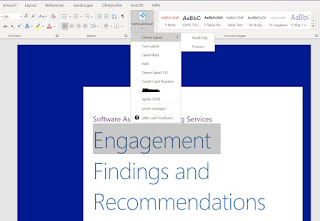
For example, to implement the following requirement, at least a license is needed that includes the Auto-Labeling feature: "All files stored in the Management Team should automatically be labeled as Internal Onyl." This is possible using the Office 365 E5 license or a license add-on such as Microsoft 365 E5 Security & Compliance. With this license, the Auto-Labeling feature in the Microsoft 365 Compliance Center will also be available:
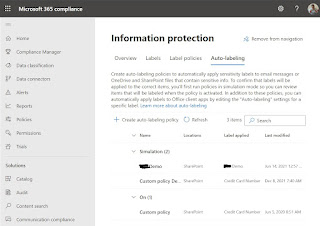
This allows content in Exchange, SharePoint and OneDrive to be automatically labeled based on rules:
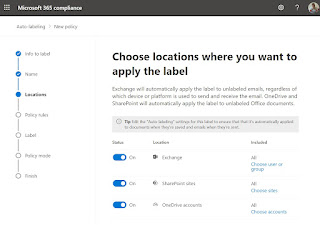
However, this only applies to Office files of type Word (.docx), PowerPoint (.pptx), and Excel (.xlsx) in SharePoint and OneDrive. For Exchange Online, PDF attachments and Office files are checked against the conditions in the Auto-Labeling Policy. If there is a match, the email is labeled, but not the attachment. Details: Apply a sensitivity label to content automatically

Automatic labeling of non-Office files

Sensitive content is often also contained in non-office files. First and foremost, the PDF format is relevant, followed by formats such as *.jpg, *.png or Visio files (*.vsdx) etc. The complete list of formats supported by Microsoft Information Protection is listed in this article: Supported file types for classification and protection
These filetypes can also be automatically labeled. For this scenario, a file policy is created in Defender for Cloud Apps:
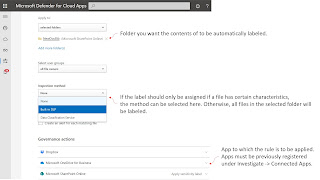

This feature is not part of the Office 365 E5 license. It can be licensed via different packages as described here: Get started with Microsoft Defender for Cloud Apps

Protect other file types

When you need to encrypt files that are not included in the list of supported file types for classification and protection, you can use the Information Protection Client. 
The client can encrypt and decrypt any file format. However, if the format is not on the list of supported file types, the Information Protection Viewer cannot be used to show the file. The file has to be saved decrypted before it can be opened with the native client app. This is currently still the case for video formats, for example.
A way to protect such files by automatic labeling is shown in the following example:
  • Synchronize the folder with the video files to be encrypted with OneDrive for Business.
  • Encrypt the video files locally via script: Set-AIPFileLabel -Path C:\Project Videos\ -LabelId d9f23ae3-1324-1234-1234-f515f824c57b
  • OneDrive for Business then synchronizes the encrypted video files back to SharePoint Online
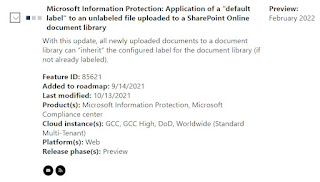
Microsoft has now announced a new feature that provides a similar result. This allows a SharePoint Online document library to be assigned a label that is then automatically applied to all files in this library.
https://www.microsoft.com/en-us/microsoft-365/roadmap?filters=&searchterms=85621
Samstag, 30. Oktober 2021

Azure AD Conditional Access | Authentication Context

The Authentication Context feature can be used to add additional and granular security to access apps or data in apps such as SharePoint or Exchange.

Example: Access to SharePoint sites or data in SharePoint is only permitted with devices managed in Intune. This is enforced via a conditional access policy. For special SharePoint sites containing highly sensitive data, access is also only permitted from the company network.

Until now, this was not possible because a conditional access policy always referred to the app as such, i.e. to SharePoint in the example above. With the Authentication Context in a Conditional Access Policy, this scenario is now possible.

Authentication Context

The feature is still in preview. The following limitations apply to the preview:

  • Deleting authentication context definitions is not possible in the preview.
  • The preview is limited to a total of 25 authentication context definitions.

An Authentication Context is created in the Conditional Access menu in the Azure Portal:


The Authentication Context is nothing more than a container:
The Authentication Context feature can then be selected in a Conditional Access Policy in the “Cloud Apps or Actions” menu item.
This adds another option to the already existing cloud apps and user actions.

Using an Authentication Context  

To implement the example from above, a Sensitivity Label is now used. The Authentication Context is configured in the Label:
The label is then assigned to the corresponding SharePoint site. If this SharePoint site is now accessed, the conditional access policy in which the authentication context is stored applies:
The whole process:
Example:
User Stan Laurel logs into Office 365 and goes to the SharePoint app:
Now he selects the SharePoint site "SPO Authentication Context DEMO" and then gets the message that access is not possible.
However, the reason here is not permissions, but that a conditional access policy, as described above, only allows access from the company network.

Samstag, 7. August 2021

Use app enforced restrictions vs. Use Conditional Access App Control

Blocking downloads or at least blocking them on unmanaged devices is a common requirement in the context of Microsoft Teams and SharePoint. Different features can be used to implement such requirements.

App Enforced Restrictions

Generally, these settings can be configured in the SharePoint Admin Center:
If this setting is used, the system automatically creates two conditional access policies in Azure AD:
These policies can be customized and thus also used as a starting point for a more detailed conditional access policy that, for example, only applies to selected users or groups.

The first screenshot above also shows the following message: We will automatically change the "Apps that don't use modern authentication" setting to block access (because these apps can't enforce this device-based restriction). The background is that apps that do not use modern authentication cannot enforce any device-based setting. If such apps remain allowed, the created conditional access policies can be bypassed.

Another information in the screenshot above makes clear that not all detailed settings are available via the UI in the SharePoint Admin Center: "If you don't want to limit or block access organization-wide, you can do so for specific sites". The link behind "Learn how" is to the documentation of the options via PowerShell.

Example: Set-SPOSite -Identity https://<SharePoint online URL>/sites/<name of site or OneDrive account> -ConditionalAccessPolicy AllowLimitedAccess

Options with Sensitivity Label

The solution via Sensitivity Label means that the settings in the SharePoint Admin Center are no longer used. The label offers the same options as for example "Allow limited, web-only access":
This setting has the following effect both in the SharePoint Admin Center and in the label configuration:
Users on unmanaged devices can only access the designated website through the browser, without being able to download, print, or sync files. They also cannot access content through apps, including Office desktop apps.
In this scenario, the corresponding label is assigned to one or more SharePoint sites. The label then enforces the configured setting. If the label and the settings in the SharePoint Admin Center conflict, the label wins.

With both options, it is thus possible to prevent downloading content from pages explicitly configured using PowerShell or labeled with a sensitivity label that enforces web-only access. It may take 5-10 minutes for the policy to take effect. It will not take effect for users who are already signed in from unmanaged devices.

Limitations of the solution with App Enforced Restrictions

The following restrictions apply when using App Enforced Restrictions:
  • If you limit access on unmanaged devices, users on managed devices must use one of the supported OS and browser combinations, or they will also have limited access.
  • If you limit access and edit a site from an unmanaged device, image web parts won't display images that you upload to the site assets library or directly to the web part.
  • If you're using classic SharePoint site templates, site images may not render correctly. This is because the policy prevents the original image files from being downloaded to the browser.
  • When Access Control for Unmanaged Devices in SharePoint is set to Allow limited, web-only access, SharePoint files cannot be downloaded but they can be previewed. The previews of Office files work in SharePoint but the previews do not work in Microsoft Yammer.

Use Conditional Access App Control

To create rules more granular / with advanced options, "Block Download" can also be enforced with Cloud App Security. This is done by using the "Conditional Access App Control" options in Conditional Access in Azure AD:
Cloud App Security then acts as a broker that is in front of the access to Office 365:

This also allows scenarios such as assigning a sensitivity label as soon as a document is downloaded.

Further options:
  • Add file filters to the policy: Extension, File Name, File Size, Sensitivity Label
  • Inspection Method: Can be used to configure include or exclude conditions 
  • Actions: Block, Protect (Apply sensitivity label to downloads & monitor all activities), require step-up authentication like MFA etc.,
  • Configure Alerts
Further details and how to implement the solution are described in this blogpost: Secure your environment by Conditional Access & App Controls

What is the difference between "Use app enforced restrictions" and "Use Conditional Access App Control"?

If the focus is only to prevent downloading on a unmanaged device, this can be achieved with both methods. The method via Microsoft Cloud App Security offers more detailed options, is not limited to SharePoint and Exchange, and does not have the limitations of App Enforced Restrictions. (see Limitations of the solution with App Enforced Restrictions) Another significant difference is the license required in each case. App Enforced Restrictions in combination with Azure AD Conditional Access required only an Azure AD P1 license. The Conditional Access App Control solution requires a Cloud App Security license for all affected users.


Dienstag, 8. Juni 2021

Sensitivity Labels & Default sharing link type

You can configure the default sharing link type for SharePoint and One Drive for Business in the SharePoint Admin Center:


With PowerShell you now can associate a default sharing link type to a sensitivity label.
Example:
If you have a label called "TOP SECRET". You could already configure this label to stop external sharing on sites associated with this label:

Now you can fine tune even this and specify the default sharing link type usingt PowerShell:
  • Set-Label -Identity 'TOP SECRET' -AdvancedSettings @{DefaultSharingScope ="SpecificPeople"}
  • Set-Label -Identity 'TOP SECRET' -AdvancedSettings @{DefaultShareLinkPermission ="Edit"}

This feature is now (06/08/2021) in public preview.


Montag, 7. Juni 2021

Customize Built-In Classifiers

As part of data classification in Microsoft 365 compliance center you can now customize built-in classifiers (sensitive information types) to meet organization's needs.
This update includes:

  • Ability to edit custom dictionaries

  • New validation functions like for example…:
    • Custom checksum validator
    • Date validator
    • Luhn check (The Luhn algorithm will detect any single-digit error, as well as almost all transpositions of adjacent digits.)
    • Etc.
  • Ability to define Proximity at pattern and element level
Rollout will begin mid-June and is expected to be complete by mid-July 2021.
For all of you who wants to start with custom sensitive information types; this feature is already here: https://docs.microsoft.com/en-us/microsoft-365/compliance/create-a-custom-sensitive-information-type


Mittwoch, 16. Dezember 2020

Update on Information Protection, Azure Purview & GDPR

Information Protection

The settings for a Sensitivity Label have changed since Ignite in September 2020. One of the first steps is now to specify whether the label should be used for “Files & Email”, for “Groups & Sites” or also for the new Azure Purview integration:

Even if the dialog looks a bit different in detail, no new feature has been added to the „Files & Email“ section.

In the „Groups & Sites“ area we now have the feature "Control External Sharing for SharePoint Online Sites":

The settings in the label override the settings in the SharePoint Admin Center when the label is assigned to a site.

Note that SharePoint Online caches these settings. If a label is reassigned or updated, it can take up to 24 hours for the changes to take effect. If a label is assigned directly when the page is created, the settings take effect within 15 minutes.

Azure Purview:

Sensitivity labels can now be extended to Azure Purview. This enables labels to be applied to SQL columns and files in Azure Blob Storage.

This is also a relevant new function, especially in the context of GDPR, as personal data is usually stored and processed in various IT systems. Details on this: Microsoft Information Protection and Microsoft Azure Purview: Better Together

The function is currently still in preview status and can be activated in the Security Center in the Sensitivity Labels area:

What is Azure Purview

Azure Purview is a data governance service. The service aggregates data from on-premises systems, multi-cloud scenarios and software-as-a-service (SaaS) applications. The service creates a Purview data map based on this data:

Details: https://azure.microsoft.com/en-us/services/purview/

GDPR

Both features, sensitivity labeling and integration with the Azure Purview service, support the requirements of the GDPR. Parallel to the updates of the technical features, Microsoft has taken action in response to the decisions of the EuGH (Privacy Shield agreement / Schrems II).  

In this press release, which is unfortunately only available in German, Microsoft explains the details of the Defending Your Data program and that these efforts will be part of future contracts with enterprise and public sector customers. The two most important details are:

·        Microsoft is committed to challenging any request by a government entity for data from enterprise or public sector customers where there is a legal basis for doing so.

·        Microsoft will compensate customers for financial damages if their data must be released to a government agency in violation of the EU General Data Protection Regulation (EU GDPR).

Details in the press release linked above.


Mittwoch, 30. September 2020

Microsoft Information Protection – News from Ignite 2020

The Microsoft Ignite Conference 2020 was held online from 22.09. - 24.09. Besides many announcements around Microsoft Teams and Office 365 there were also some news about Microsoft Information Protection.

News from Ignite

Microsoft is combining data loss prevention and protection of sensitive data. DLP rules can now be defined in the sensitivity label:


Data Loss Prevention is an area that is currently under strong focus. This is a current and important topic not least because of the strong growth of home office regulations in the context of CORONA. Here an overview of the announcements:

  • Devices / Endpoint Integration and the Cloud App Security service can now be set as targets for DLP policies:

  • In the context of the Cloud App Security service, it is also possible to restrict which registered apps are affected by the policy:
  • Under the topic "Policy Settings" you can then control the effects of the policy in a very granular way:
  • A DLP policy can be run in test mode in the first step:
There will also be changes from the user's perspective. Here is an example of how DLP will affect Microsoft Teams:

Conclusion

By integrating DLP functions into Sensitivity Label and coupling it with the Cloud App Security and Endpoint Manager / Intune services, sensitive data can now be protected in a holistic approach. With the new options, protection is independent of the storage location, the tool used for editing and the device used. Nevertheless, users can still work flexibly with the data - even from the home office.

The key topics on the current roadmap at https://www.microsoft.com/en-us/microsoft-365/roadmap are: